What are cookies for?
Cookies are actually a useful invention: they remember settings and logins and make browsing more convenient. At the same time they reveal a lot about the sites you visit, your interests and preferences – right up to a tailor-made profile. In Safari you decide how they are handled.
Allow and block cookies
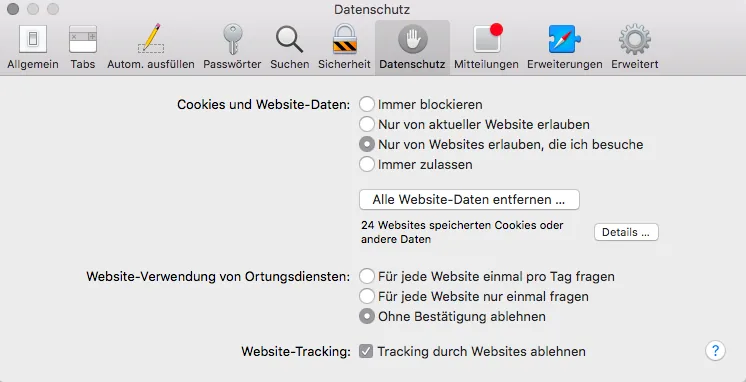
- Open Safari’s settings: menu Safari › Settings or ⌘ ,
- Select the Privacy area.
- Choose whether cookies are never, always or only blocked for third parties.
Delete Safari cookies manually
Under Privacy › Manage Website Data … you’ll see every website that has stored cookies or other data.
- Select individual entries and click Remove – or
- choose Remove All and confirm with Remove Now.
If you don’t want to do this after every session, you can block cookies permanently (Block all cookies). But many websites then stop working properly.
Delete Safari cookies automatically with Bushfire
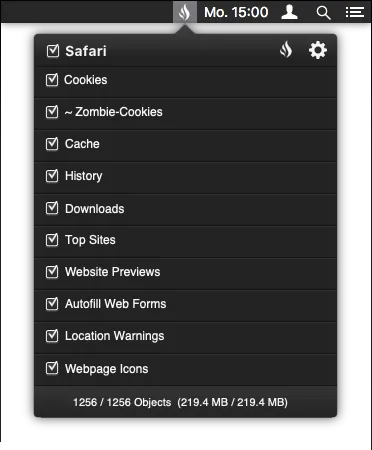
Safari can only remove cookies by hand – all websites at once or one by one. Instead of cleaning up after every session, the Safari app Bushfire does it for you: the moment you quit Safari, it automatically deletes your cookies and any other data you selected. How the same works for your browsing history is covered in the guide Delete Safari history automatically.
- no registration, in German or English
- status and activity indicator in the macOS menu bar
- switch each category on or off individually
- for all users on your Mac, updates are free