
What your history reveals about you
Safari remembers every page you visit, your recent searches and the list of your downloads. That’s handy when you want to find a page again. But it also shows anyone who gets hold of your Mac what you have been up to. On top of that, if Safari is set up with iCloud, your history applies across all your Apple devices.
Delete Safari history manually
- Open Safari and choose History › Clear History … from the menu.
- Use the pop-up menu to choose how far back to clear, for example the last hour, today or all history.
- Confirm with Clear History.
According to Apple, Safari doesn’t just remove the pages you visited, but also the frequently visited sites list, recent searches, website icons and snapshots, the downloads list (downloaded files are kept) and the websites that asked to use your location or send notifications. If Safari is set up with iCloud, your history disappears from all connected devices.
You have to do this by hand every time, and you can only choose the period. Selecting individual categories to keep isn’t possible.
Let Safari remove old entries itself
Safari can tidy up your history at fixed intervals:
- Open Safari › Settings (or press ⌘ ,).
- Select the General area.
- Next to Remove history items, choose a period: after one day, one week, two weeks, one month, one year – or manually.
This helps, but it’s a compromise: the shortest period is one day, so your history stays around at least that long. There is no option to delete when you quit Safari.
Delete Safari history automatically with Bushfire
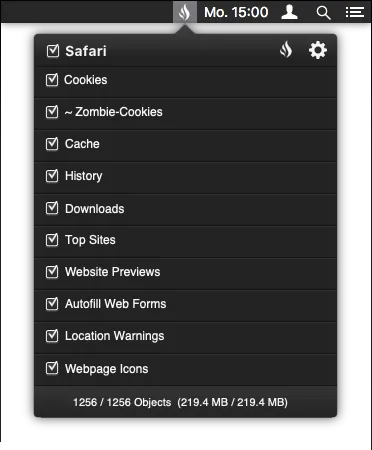
Firefox and Chrome can delete your history automatically when you quit. Safari can’t. Bushfire closes exactly this gap: the small menu bar app waits in the background until you quit Safari, then immediately deletes your history and any other categories you selected.
- deletes when you quit Safari, not only after a day
- choose categories individually, for example delete history but keep cookies
- also cache, downloads, Top Sites, website previews and more
- free, open source, no account
- Download Bushfire and drag it into your Applications folder.
- Start Bushfire. On first launch on macOS 15 or later you need to allow the app once – the guide shows how.
- In Bushfire’s menu, switch on the History category.
- Done: the next time you quit Safari, your history is gone.
If Safari doesn’t get rid of your history
- Safari connected to iCloud: Then iCloud restores deleted data. How to get around that is explained in Support.
- Missing permission: Since macOS Mojave, Bushfire needs access to the Library folder. Support explains that too.
- Private browsing: Private windows don’t create any history in the first place. More in the (German) guide Privates Surfen in Safari.
- Cookies: You manage them separately from your history. The guide Delete Safari cookies automatically shows how to remove them after every session, too.
- Cache: The cache for images and scripts is separate from your history, too. How to empty it automatically is covered in the guide Delete Safari cache automatically.